Category Archives: Development

WASM: AggregateException_ctor_DefaultMessage (Could not resolve type with token …)

We ran into an interesting issue after installing .NET 9 SDK 9.0.204 (and 9.0.300 didn’t help either) with published Blazor WebAssembly front-ends. The app failed to load, and the browser console output showed this error:

ManagedError: AggregateException_ctor_DefaultMessage (Could not resolve type with token 01000024 from typeref (expected class 'System.Reflection.Assembly' in assembly 'netstandard, Version=2.1.0.0, Culture=neutral, PublicKeyToken=cc7b13ffcd2ddd51'))
    at an (dotnet.runtime.5nhp1wfg9b.js:3:26894)
    at Kt.resolve_or_reject (dotnet.runtime.5nhp1wfg9b.js:3:26449)
    at dotnet.runtime.5nhp1wfg9b.js:3:172714
    at dotnet.runtime.5nhp1wfg9b.js:3:172778
    at fr (dotnet.runtime.5nhp1wfg9b.js:3:35046)
    at Fc (dotnet.runtime.5nhp1wfg9b.js:3:172361)
    at dotnet.native.swgexbmoy7.wasm:0x1f1a4
    at dotnet.native.swgexbmoy7.wasm:0x1c8ae
    at dotnet.native.swgexbmoy7.wasm:0xea19
    at dotnet.native.swgexbmoy7.wasm:0x1ec88

Our first suspicion was trimming, but to make a long story short, this turned out to be the classic issue that comes with builds after installing a new SDK: you need to clear the build agents’ working folders if your builds don’t run in completely clean environments and rely on any kind of incremental setup.

Translated to local development in Visual Studio: make sure to clean the solution and manually delete the bin and obj folders.

Why am I posting this? In case someone else runs into the same error, maybe they’ll find this post and save time troubleshooting. We’ve pretty much gotten used to builds breaking after a new SDK install, and our go-to move is wiping the build agent workspace before diving deeper.

But this was a first for us: the build actually succeeded, but the output was “broken” in a way that only surfaced when running the Blazor WASM frontend in the browser.

[Blazor] await periodicTimer.WaitForNextTickAsync() – a good servant but a bad master

Beware of using await periodicTimer.WaitForNextTickAsync(). This method is appealing due to its asynchronous signature, making it easy to set up periodic tasks, which might tempt you to implement UI updates with it, especially in Blazor:

protected override async Task OnInitializedAsync()
{
    await StartTimerAsync();
}

private async Task StartTimerAsync()
{
    using var timer = new PeriodicTimer(TimeSpan.FromSeconds(10));
    while (await timer.WaitForNextTickAsync())
    {
        // do some UI updates here
    }
}

Warning! While this approach doesn’t block the UI thread thanks to async-await, the issue is that the method calling such code never actually completes.

For instance, if StartTimerAsync() is called directly from OnInitializedAsync, OnParametersSetAsync, OnAfterRenderAsync, or an action callback, the parent method will never finish, leading to some unexpected consequences, like:

  • If called from an HxButton.OnClick button handler, the spinner remains stuck, never stopping.
    • The button also stays under single-click protection, disabled, and unusable.
  • If called from OnInitializedAsync, the first roundtrip won’t invoke OnParametersSet[Async], which won’t execute until a new roundtrip arrives.
  • Calling from OnParametersSetAsync leaves an unfinished task in ComponentBase.CallStateHasChangedOnAsyncCompletion() and requires handling to prevent multiple timers from starting, as OnParametersSetAsync is called repeatedly.
  • If called from OnAfterRenderAsync(bool firstRender), it could block the await base.OnAfterRenderAsync(firstRender) call, disrupting inherited functionality (especially crucial for firstRender = true, which only runs once).

So, PeriodicTimer.WaitForNextTickAsync() is more appropriate in scenarios where it’s safe for the calling code to continue indefinitely, such as in a Main method for a console application handling cyclical tasks or within BackgroundService.ExecuteAsync(). In general, however, the calling method should be allowed to complete. Instead, a traditional setup using Task.Run(..) is recommended, placing the timer (or even a regular Timer) on the ThreadPool without awaiting its completion in the current method (fire-and-forget). In Blazor, this requires manually invoking StateHasChanged() or possibly DispatchExceptionAsync().

Example:

public MyComponent : IDisposable
{
    private PeriodicTimer timer;

    protected override async Task OnInitializedAsync()
    {
        _ = Task.Run(StartTimerAsync);
    }

    private async Task StartTimerAsync()
    {
        timer = new PeriodicTimer(TimeSpan.FromSeconds(10));
        while (await timer.WaitForNextTickAsync())
        {
            // do some UI updates here
            StateHasChanged(); // as needed
        }
    }

    public void Dispose()
    {
        timer?.Dispose();
    }
}

Don’t forget cleanup with timer.Dispose(), or the Timer will keep running even after the component is destroyed, leading to resource leaks.

See also the ASP.NET Core Blazor documentation:

ASP.NET Core Blazor synchronization context: Invoke component methods externally to update state

Go to file member (Visual Studio)

I’ve been struggling for a long time with how to quickly navigate to a member in a larger file when I already know its name.

Resharper/Rider has a direct Go to file member shortcut with Alt + \.

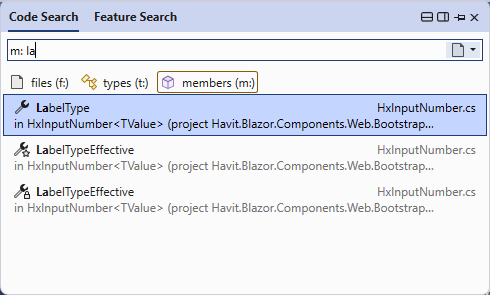
Visual Studio 2022 has a Go to member feature, but by default, it’s scoped to the entire solution.

It’s one of those classic Go to… tools with the m: prefix that searches for members but across the whole solution. Worse, it doesn’t prioritize results from the current file 😭. There’s no shortcut or a clear way to pre-scope it to the current file.

HOWEVER!!! There’s one feature I just discovered today that makes it usable (at least for me) – it remembers the last scope, and it does so separately for different use cases. Plus, it shares the same shortcut Alt + \.

So:

You open it once through Go to member (Alt+\), change the scope to Current file, and from then on, it will remember that setting.

This doesn’t affect other use cases. For Go to all (Ctrl + T) or Go to file (Ctrl + Shift + T), it still remembers the Current solution scope for me.

A real quality of life changer! 🤣🥳

SQL LocalDB: Upgrade to 2022 (15.0.2000)

For me it was quite confusing to find the 2022 version of LocalDB and it is not a streamline process to upgrade your local default instance.

The easiest way to upgrade your LocalDB instance to 2022 is:

  1. Download the LocalDB 2022 installer by using the SQL Server Express installer.
    https://download.microsoft.com/download/5/1/4/5145fe04-4d30-4b85-b0d1-39533663a2f1/SQL2022-SSEI-Expr.exe
    1. Run the installer and select “Download Media”.
    2. Select “LocalDB” + click Download.
  2. Before running the SqlLocalDB.msi installer, delete your current MSSQLLocalDB instance:
sqllocaldb stop MSSQLLocalDB
sqllocaldb delete MSSQLLocalDB
  1. Run the new SqlLocalDB.msi (2022) installer. It will create a new MSSQLLocalDB instance.
  2. RESTART YOUR PC! (Otherwise MS SQL Management Studio will still tell you you have an old version running, etc. etc.)
  3. Now you can re-attach your original databases one by one using SQL Server Management Studio (RClick + Attach…)
  4. Done.

gRPC code-first for Blazor WebAssembly front-end

gRPC is a phenomenon of our time. This modern and performance-efficient protocol is rapidly spreading, and today we will show how to use it for communication between the Blazor WebAssembly front-end and the ASP.NET Core backend (host):

  1. We will efficiently use the possibilities of sharing code between the server and client part. We will use the code-first arrangement and put the “contract” (interface for the called service and data object definitions) into the assembly shared by both the server and client parts of the solution.
  2. To overcome browser limitations, we will use the gRPC-Web extension.

We will show the entire implementation on a simple example – we will use the default Blazor WebAssembly App template from Visual Studio (ASP.NET Core hosted, version of the .NET7 template) and we will convert the prepared Fetch data example, which uses the REST API in this template, to a gRPC-Web call using code-first.

Let’s do this, it’s just a few steps:

1. MyBlazorSolution.Server – Preparing ASP.NET Core host

First, we prepare the server-side infrastructure for gRPC. We will go directly to the version with the gRPC-Web extension with code-first support and install NuGet packages

We register support services in dependency-injection in Startup.cs:

builder.Services.AddCodeFirstGrpc(config => { config.ResponseCompressionLevel = System.IO.Compression.CompressionLevel.Optimal; });

We add gRPC middleware somewhere between UseRouting() and endpoint definition (before MapXy() methods):

app.UseGrpcWeb(new GrpcWebOptions() { DefaultEnabled = true });

2. MyBlazorSolution.Shared – Service contract definition (code-first)

Now we define in the form of an interface what our service will look like. We will then use the interface on the server side (we will create its implementation) and on the client side (we will generate a gRPC client that will implement the interface and we will directly use it in our code via dependency injection).
Add to the project a NuGet package that allows us to decorate the interface with necessary attributes

Find the example WeatherForecast.cs file from the project template. It contains the definition of the return data message, which the sample REST API now returns to us. We will convert this class into the following form:

[DataContract]
public class WeatherForecast
{
    [DataMember(Order = 1)]
    public DateTime Date { get; set; }

    [DataMember(Order = 2)]
    public int TemperatureC { get; set; }

    [DataMember(Order = 3)]
    public string? Summary { get; set; }

    public int TemperatureF => 32 + (int)(TemperatureC / 0.5556);
}
  • We added the [DataContract] attribute to mark the class we will use as the gRPC data message.
  • We added [DataMember(Order = ...)] attributes that mark the elements to be transmitted via gRPC (others are ignored, here TemperatureF is calculated and recalculated from other data on the client anytime). Each element needs to be set Order, which defines the fixed layout for the used protobuf serialization.
  • We replaced the original DateOnly type with DateTime. We have to stick to types supported by used protobuf serialization.

Next, we need to create an interface that will describe the whole service:

[ServiceContract]
public interface IWeatherForecastFacade
{
    Task<List<WeatherForecast>> GetForecastAsync(CancellationToken cancellationToken = default);
}
  • The [ServiceContract] attribute tells us the applicability for gRPC (can be used later for automatic registrations).
  • By the nature of network communication, the entire interface should be asynchronous.
  • We can use the optional CancellationToken, which can convey a signal of premature termination of communication by the client (or disconnection).

3. MyBlazorSolution.Server – Implementing the gRPC service

Now we need to implement the prepared interface on the server side (we will use slightly modified code from the sample WeatherForecastController, which you can now delete):

public class WeatherForecastFacade : IWeatherForecastFacade
{
    private static readonly string[] Summaries = new[]
    {
        "Freezing", "Bracing", "Chilly", "Cool", "Mild", "Warm", "Balmy", "Hot", "Sweltering", "Scorching"
    };

    public Task<List<WeatherForecast>> GetForecastAsync(CancellationToken cancellationToken = default)
    {
        return Task.FromResult(Enumerable.Range(1, 5).Select(index => new WeatherForecast
        {
            Date = DateTime.Today.AddDays(index),
            TemperatureC = Random.Shared.Next(-20, 55),
            Summary = Summaries[Random.Shared.Next(Summaries.Length)]
        })
        .ToList());
    }
}

Now we have to add the gRPC service in Startup.cs:

app.MapGrpcService<WeatherForecastFacade>();

4. MyBlazorSolution.Client – gRPC client in Blazor WebAssembly

Now all that is left is to use the service in the Blazor WebAssembly front-end. The entire definition is available in the form of the IWeatherForecastFacade interface with its WeatherForecast data class.

We will add the necessary NuGet packages to the project:

Register the gRPC-Web infrastructure and the client (in factory form) in Program.cs:

builder.Services.AddTransient<GrpcWebHandler>(provider => new GrpcWebHandler(GrpcWebMode.GrpcWeb, new HttpClientHandler()));

builder.Services.AddCodeFirstGrpcClient<IWeatherForecastFacade>((provider, options) => =>
    {
        var navigationManager = provider.GetRequiredService<NavigationManager>();
        var backendUrl = navigationManager.BaseUri;

        options.Address = new Uri(backendUrl);
    })
    .ConfigurePrimaryHttpMessageHandler<GrpcWebHandler>();

Well, now we can use IWeatherForecastFacade anywhere in the front-end project by having the service injected using dependency injection. So, for example, we’ll modify FetchData.razor to use our new gRPC service instead of the original REST API:

@inject IWeatherForecastFacade WeatherForecastFacade

...

@code {
    private List<WeatherForecast>? forecasts;

    protected override async Task OnInitializedAsync()
    {
        forecasts = await WeatherForecastFacade.GetForecastAsync();
    }
}

Done. The project should now be executable and the Fetch data page will now communicate via gRPC-Web.

You can check your solution against the sample repository

Other extensions and more advanced techniques

The gRPC service can, of course, accept input. In this case, use one input parameter for the incoming message – a data class created in the same way we prepared the WeatherForecast output. (Usually these classes are referred to as Data Transfer Object and thus given the suffix Dto. The implementation is usually as a C# record.)

If we have authentication and authorization in our project, then we can use the [Authorize] attribute on the implementing class/method, just as we would on a controller/action.

We can apply arbitrary techniques to the published gRPC endpoint like any other mapped server endpoint (rate limiting, caching, …).

gRPC has support for interceptors which can be used to further improve gRPC communication

  • pass exceptions from server to client (basic support is built-in, but you may want to enrich it with specific handling of custom scenarios),
  • passing the required culture from client to server (what language the front-end is switched to),

In a more advanced variant of the layout, you can also provide automatic registration of interface and data contracts without having to decorate them with [ServiceContract], [DataContract] and [DataMember(Order = ...)] attributes. All this and much more can be found ready in:

Both open-source with MIT license, free of charge.
Blazor WASM: Unsupported connection to AAD using the standard auth-library (Microsoft.AspNetCore.Components.WebAssembly.Authentication)

If you (like me) were hoping to “easily” create a Blazor application that connects to a generic OIDC identity-provider using the Microsoft.AspNetCore.Components.WebAssembly.Authentication library, while also supporting connections to Azure Active Directory (AAD) this way, you’ll be disappointed.

The idea is simple, AAD does support OIDC and therefore now why shouldn’t a generic OIDC client be able to connect to AAD as well. Unfortunately the hurdles are more than you would like to overcome.

While the Microsoft.Authentication.WebAssembly.Msal library for AAD is an extension of the underlying Microsoft.AspNetCore.Components.WebAssembly.Authentication library, it does a lot more than just boilerplate configuration of the underlying generic OIDC.

The basic difference can be found, for example, in the “interop” part with the underlying oidc-client JavaScript module.

  • AuthenticationService.ts in Microsoft.AspNetCore.Components.WebAssembly.Authentication,
  • AuthenticationService.ts in Microsoft.Authentication.WebAssembly.Msal.
    This is manifested for example when retrieving access-tokens. The MSAL version “fixes” the AAD specificity that when querying a token endpoint does not always return an access-token with all required scopes (the details are for a broader discussion, but e.g. you don’t get a token that has User.Read scope in it along with the custom-scope of your API, etc.).

The base library uses the “caching” of tokens in the oidc-client UserManager and relies on the assumption “If token-endpoint returned an access-token, then that token has all the required scopes in it.” (i.e., it stores the required scopes for the retrieved token, and then returns the already retrieved token the next time the same scopes are requested).

The “fixed” MSAL library knows this shortcoming of the underlying oidc-client and knows that while it claims to have a token for some set of scopes, the access-token may not actually have those scopes. Therefore, it “turns off” caching at this level and always gets the token again.

Announcing HAVIT Blazor 1.4.3 – Free Bootstrap 5 components for ASP.NET Blazor

Didn’t have a chance to announce our component bundle on this KnowledgeBase yet…

Now we released version 1.4.3. What’s new?

  • HxInputDateHxInputDateRange and HxCalendar have new MinDate and MaxDate parameters to allow customization of selectable dates in calendars (also added to Defaults to be able to customize the application-wide defaults)
  • HxInputDate and HxInputDateRange have new CalendarDateCustomizationProvider which allows further customization (enabled/disabled, CssClass) of individual dates in dropdown calendars
  • ⚠️ HxCalendar parameters MinYear and MaxYear replaced with the new MinDate and MaxDate parameters
  • HxCalendar has new simplified month/year navigation
  • HxInputDate fixed validation icon position if CalendarIcon is used
  • HxInputFileCore has new HxInputFileCore.Defaults.MaxFileSize application-wide default to be able to limit maximum file size,
  • HxInputFile has new HxInputFile.Defaults.InputSize application-wide default to be able to set form component size
  • HxSidebar fixed ability to scroll on mobile if viewport is overlapped
  • HxSidebar has new CSS variable for customising background-colour
  • Updated to Bootstrap 5.1.3 and Bootstrap Icons 1.6

What is HAVIT Blazor?

HAVIT Blazor is a free open-source (MIT) component bundle build on top of Bootstrap 5. It not only covers all Bootstrap 5 components but also brings a few enterprise-level ones (e.g. HxGrid, HxInputDate, HxAutosuggest, HxInputTags) and special ones (e.g. HxGoogleTagManager).

Interactive documentation & demos – https://havit.blazor.eu

Source code – https://github.com/havit/Havit.Blazor

Forms

Buttons & Indicators

Data & Grid

Layout & Typography

Navigation

Modals & Interactions

Special

Enterprise-application template [OPTIONAL]

Beside the components there is a ready to run enterprise level application template which includes gRPC code-first communication, full layered architecture stack (Model, DataLayer, Services, …) and much more.

Grpc.Core.RpcException: Status (StatusCode=”Unimplemented”, Detail=”Bad gRPC response. HTTP status code: 404″)

If this is the Havit.Blazor stack, make sure you are starting the Web.Server project (ASP.NET Host), not the Web.Client (Blazor WASM SPA).

Blazor WASM not loading CSS files (or other static assets) from Razor Component libraries

Make sure you reference the razor library from the ASP.NET Host (Web.Server), otherwise the ASP.NET Host does not have any knowledge of your library unless you reference it directly.

Blazor WASM error: Could not load settings from ‘_configuration/BlazorClient’

Make sure your startup project is set to Web.Server (ASP.NET Host).

This kind of error appears when you try to start the Web.Client directly.

blazor.webassembly.js:1 crit: Microsoft.AspNetCore.Components.WebAssembly.Rendering.WebAssemblyRenderer[100]
      Unhandled exception rendering component: Could not load settings from '_configuration/Havit.Bety2.Web.Client'
      Error: Could not load settings from '_configuration/Havit.Bety2.Web.Client'
          at Function.createUserManager (http://localhost:59799/_content/Microsoft.AspNetCore.Components.WebAssembly.Authentication/AuthenticationService.js:1:5893)
          at async Function.initializeCore (http://localhost:59799/_content/Microsoft.AspNetCore.Components.WebAssembly.Authentication/AuthenticationService.js:1:5027)
Microsoft.JSInterop.JSException: Could not load settings from '_configuration/Havit.Bety2.Web.Client'
Error: Could not load settings from '_configuration/Havit.Bety2.Web.Client'